Next.js 블로그에 Notion 연동하기
끄적끄적 글을 작성하고 블로그로 관리하다 보면 글 작성을 더 편하게 하고 싶은 마음이 생기곤 한다.
기존에는 옵시디언을 이용해서 마크다운 파일을 작성하고 Git에 커밋하는 방식으로 관리했다. 옵시디언은 블로그를 처음 만들 당시만 하더라도 옵시디언은 개발자 사이에서 꽤 입소문을 타던 아카이빙 도구였다.
이에 편승해 나도 옵시디언을 메인 아카이빙 도구로 사용하였으나, 옵시디언을 활용하기 위해서는 마크다운 형식에 익숙해야하고 자유도가 높은 도구이다 보니 나의 필요를 세세하기 플러그인을 통해서 맞춰갔어야 했다.
남들이 좋고, 편하다는 말에 억지로 맞지도 않는 옷을 입고 좋다고, 편하다고 억지로 웃음 짓고 있었다. 😓 (물론, 내가 잘 활용하지 못했긴 하다.)
왜 Notion을 선택했나
기존 블로그는 MDX 파일을 별도의 폴더로 저장하고 관리했다. 그렇지만 아래와 같은 단점들이 있었다.
- 로컬 환경에서만 글을 작성할 수 있음
- 이미지 업로드가 번거로움
- 에디터 기능이 제한적
- 여러 기기에서 작업하기 어려움
위 단점을 해결하기 위해 다시 Notion으로 돌아왔다. 더 나아가 나는 기존과 같이 MD 파일로 관리하기 보다는 에디터로 관리하고, 아카이빙 된 자료들이 블로그의 자동으로 올라가길 원했다.
필요 기능
Notion 연동을 위해 다음과 같은 기능이 필요했다.
- Notion → MDX 동기화: Notion에서 작성한 글을 MDX 파일로 변환
- MDX → Notion 업로드: 기존 MDX 파일을 Notion으로 업로드
- 자동 빌드 통합: 빌드 시 자동으로 최신 글 동기화
위 기능을 구현하기 위해서 우선적으로 기본적인 설정이 필요하다.
Notion API 설정
먼저 Notion Integration을 생성하고 블로그 글을 아카이빙할 데이터베이스를 설정했다.
Integration 생성
- Notion Integrations 페이지에서 새 Integration 생성
- Internal Integration Token 복사
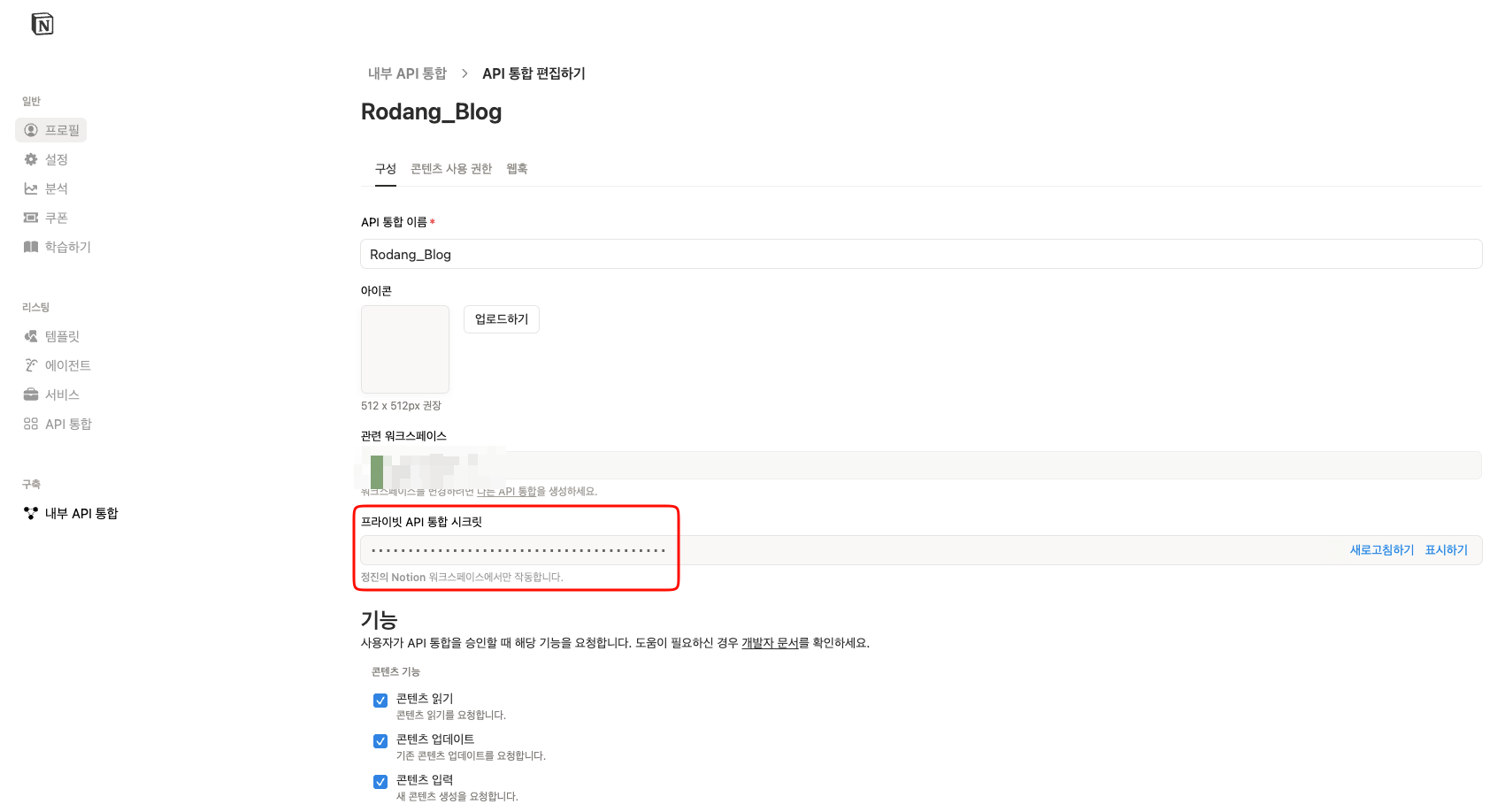
- 데이터베이스에 Integration 연결
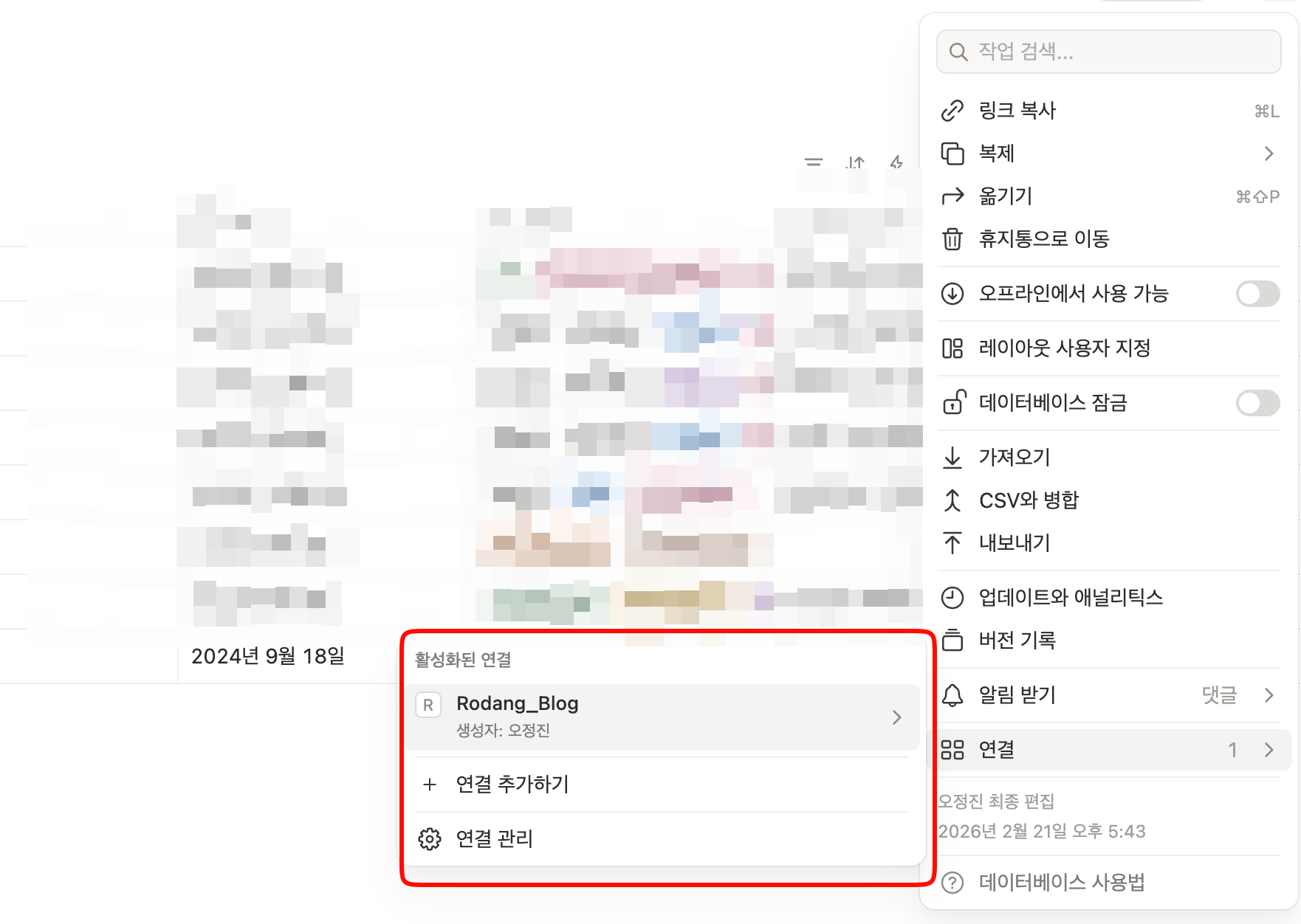
데이터베이스 속성 구성
블로그 포스트에 필요한 속성들을 데이터베이스에 추가했다
- Title (Title): 포스트 제목
- Date (Date): 발행일
- Tags (Multi-select): 태그 목록
- Summary (Text): 요약
- Draft (Checkbox): 초안 여부
- Authors (Multi-select): 작성자
생각보다 간단하게 기본적인 설정을 마쳤다.
3단계 스크립트 구성
1. Notion ⇒ MDX 동기화 (sync-notion.mjs)
1️⃣ 환경 설정 및 Notion 클라이언트 초기화
const NOTION_TOKEN = process.env.NOTION_TOKEN;
const NOTION_DATABASE_ID = process.env.NOTION_DATABASE_ID;

// Notion API 클라이언트 생성
const notion = new Client({ auth: NOTION_TOKEN });
const n2m = new NotionToMarkdown({ notionClient: notion });
2️⃣ Notion 데이터베이스에서 게시글 쿼리
// Published = true인 글만 가져오고, Date 기준 내림차순 정렬
const queryOptions = {
  database_id: NOTION_DATABASE_ID,
  filter: {
    property: 'Published',
    checkbox: { equals: true },
  },
  sorts: [
    {
      property: 'Date',
      direction: 'descending',
    },
  ],
};

const response = await fetch(
  `https://api.notion.com/v1/databases/${NOTION_DATABASE_ID}/query`,
  {
    method: 'POST',
    headers: {
      Authorization: `Bearer ${NOTION_TOKEN}`,
      'Notion-Version': '2022-06-28',
    },
    body: JSON.stringify(queryOptions),
  }
);
3️⃣ Notion 속성값 추출
function getPropertyValue(page, propertyName) {
  const property = page.properties[propertyName];

  switch (property.type) {
    case 'title':
      return property.title.map((t) => t.plain_text).join('');
    case 'multi_select':
      return property.multi_select.map((s) => s.name);
    case 'date':
      return property.date?.start || null;
    case 'checkbox':
      return property.checkbox;
    case 'files':
      return property.files.map((f) => f.file?.url || f.external?.url);
    default:
      return null;
  }
}
4️⃣ Notion 페이지를 마크다운으로 변환
const mdBlocks = await n2m.pageToMarkdown(page.id);
const mdString = n2m.toMarkdownString(mdBlocks);
const markdownContent = mdString.parent || mdString || '';
5️⃣ 이미지 자동 다운로드 및 경로 치환
async function downloadAndReplaceImages(content, slug, imagesDir) {
// Notion S3 URL 찾기
const imageUrls = extractAllImageUrls(content);
const notionImages = imageUrls.filter((img) => isNotionS3Url(img.url));
// 각 이미지 다운로드
for (let i = 0; i < notionImages.length; i++) {
const fileName = generateImageFileName(url, i); // MD5 기반 해시
const localPath = join(postImageDir, fileName);
const publicPath = `/images/blog/${slug}/${fileName}`;
// 원본 URL → 로컬 경로로 치환
//  → 
updatedContent = updatedContent.replace(
fullMatch,
``
);
}
}6️⃣ MDX 프론트매터 생성 및 파일 저장
const frontmatterLines = [
  `title: '${title}'`,
  `date: '${formatDate(date)}'`,
  `tags: ${JSON.stringify(tags)}`,
  `draft: ${draft}`,
  `summary: '${summary}'`,
  `images: ${JSON.stringify([downloadedImage])}`,
  `authors: ${JSON.stringify(authors)}`,
];

const mdxContent = `---\n${frontmatterLines.join('\n')}\n---\n\n${processedContent}`;
writeFileSync(`/src/content/blog/${slug}.mdx`, mdxContent);- MDX → Notion 업로드 (upload-to-notion.mjs)
1️⃣ 기존 Notion 페이지 목록 조회
const existingPagesResponse = await fetch(
  `https://api.notion.com/v1/databases/${NOTION_DATABASE_ID}/query`,
  {
    method: 'POST',
    body: JSON.stringify({ page_size: 100 }),
  }
);

const existingPages = await existingPagesResponse.json();
const existingTitles = new Set();

// 기존 제목을 Set에 저장 (중복 체크용)
for (const page of existingPages.results) {
  const pageDetails = await notion.pages.retrieve({ page_id: page.id });
  const title =
    pageDetails.properties?.Title?.title?.[0]?.plain_text || '';
  existingTitles.add(title.toLowerCase().trim());
}
2️⃣ MDX 파일 읽기 및 프론트매터 파싱
import matter from 'gray-matter';

const fileContent = readFileSync(file.path, 'utf-8');
const { data: frontmatter, content } = matter(fileContent);

// 추출되는 데이터:
// frontmatter = { title, date, tags, summary, draft, authors, ... }
// content = 실제 마크다운 본문
3️⃣ 마크다운을 Notion 블록으로 변환
function markdownToNotionBlocks(markdown) {
  const blocks = [];
  const lines = markdown.split('\n');
  let inCodeBlock = false;
  let codeLanguage = 'plain text';
  let codeContent = [];

  for (const line of lines) {
    if (line.startsWith('```')) {
      // 코드블록 시작/종료
      if (inCodeBlock) {
        blocks.push({
          object: 'block',
          type: 'code',
          code: {
            rich_text: [
              { type: 'text', text: { content: codeContent.join('\n') } },
            ],
            language: normalizeLanguage(codeLanguage),
          },
        });
        inCodeBlock = false;
        codeContent = [];
      } else {
        codeLanguage = line.substring(3).trim();
        inCodeBlock = true;
      }
    } else if (inCodeBlock) {
      codeContent.push(line);
    } else if (line.startsWith('# ')) {
      // H1 → heading_1
      blocks.push({
        object: 'block',
        type: 'heading_1',
        heading_1: {
          rich_text: [
            { type: 'text', text: { content: line.substring(2) } },
          ],
        },
      });
    } else if (line.startsWith('- ') || line.startsWith('* ')) {
      // 리스트 → bulleted_list_item
      blocks.push({
        object: 'block',
        type: 'bulleted_list_item',
        bulleted_list_item: {
          rich_text: [
            { type: 'text', text: { content: line.substring(2) } },
          ],
        },
      });
    } else {
      // 일반 텍스트 → paragraph
      blocks.push({
        object: 'block',
        type: 'paragraph',
        paragraph: {
          rich_text: [{ type: 'text', text: { content: line } }],
        },
      });
    }
  }

  return blocks;
}
4️⃣ Notion 페이지 속성 매핑
function createPropertyValue(type, value) {
  switch (type) {
    case 'title':
      return { title: [{ text: { content: value } }] };
    case 'date':
      return { date: { start: value } };
    case 'multi_select':
      return { multi_select: value.map((item) => ({ name: item })) };
    case 'checkbox':
      return { checkbox: value || false };
    case 'rich_text':
      return { rich_text: [{ text: { content: value || '' } }] };
  }
}

// 프론트매터 데이터 → Notion 속성으로 변환
const properties = {};
properties.Title = createPropertyValue('title', frontmatter.title);
properties.Date = createPropertyValue('date', frontmatter.date);
properties.Tags = createPropertyValue('multi_select', frontmatter.tags);
properties.Draft = createPropertyValue('checkbox', frontmatter.draft);
properties.Authors = createPropertyValue('multi_select', frontmatter.authors);
5️⃣ Notion 페이지 생성 (블록은 100개씩 분할)
// 100개씩 청크로 나누기
const maxBlocksPerRequest = 100;
const blockChunks = [];
for (let i = 0; i < allBlocks.length; i += maxBlocksPerRequest) {
  blockChunks.push(allBlocks.slice(i, i + maxBlocksPerRequest));
}

// 첫번째 청크로 페이지 생성
const response = await fetch('https://api.notion.com/v1/pages', {
  method: 'POST',
  headers: { Authorization: `Bearer ${NOTION_TOKEN}` },
  body: JSON.stringify({
    parent: { database_id: NOTION_DATABASE_ID },
    properties: properties,
    children: blockChunks[0], // 첫 100개 블록
  }),
});

const page = await response.json();
const pageId = page.id;

// 나머지 청크를 페이지에 추가
for (let i = 1; i < blockChunks.length; i++) {
  await fetch(`https://api.notion.com/v1/blocks/${pageId}/children`, {
    method: 'PATCH',
    body: JSON.stringify({ children: blockChunks[i] }),
  });
}
3. 자동 빌드 통합
빌드할 때 자동으로 Notion 동기화를 먼저 실행하므로, 항상 최신 글로 배포됩니다.
package.json의 build 스크립트
{
  "scripts": {
    "dev": "astro dev",
    "sync-notion": "node ./scripts/sync-notion.mjs",
    "upload-to-notion": "node ./scripts/upload-to-notion.mjs",
    "build": "npm run sync-notion && astro check && astro build"
  }
}
환경 변수
# .env.local 파일 생성
NOTION_TOKEN=ntn_your_token_here
NOTION_DATABASE_ID=your_database_id
Vercel
프로젝트 설정 → Environment Variables에서 NOTION_TOKEN과 NOTION_DATABASE_ID를 등록합니다.
첫 번째 이슈: 코드 블록 언어 형식
MDX 파일의 코드 블록을 Notion으로 변환할 때 언어 코드가 Notion이 지원하는 형식과 맞지 않았습니다. 예를 들어:
js→javascript로 변환 필요ts:file.ts→ 파일명 제거하고typescript로 변환tex→latex로 변환- 지원하지 않는 언어 →
plain text로 폴백
해결 방법
언어 코드를 정규화하는 함수를 만들었습니다:
function normalizeLanguage(lang) {
  if (!lang) return 'plain text'

  // 파일명 형식 제거
  lang = lang.split(':')[0].split('.')[0].toLowerCase().trim()

  // 언어 매핑
  const languageMap = {
    'js': 'javascript',
    'ts': 'typescript',
    'py': 'python',
    'tex': 'latex',
    // ... 더 많은 매핑
  }

  const normalized = languageMap[lang] || lang

  // Notion이 지원하는 언어인지 확인
  const supportedLanguages = ['javascript', 'typescript', 'python', ...]

  return supportedLanguages.includes(normalized) ? normalized : 'plain text'
}
두 번째 이슈: 블록 개수 제한
Notion API는 한 번에 최대 100개의 블록만 생성할 수 있습니다. 긴 글의 경우 이 제한을 초과할 수 있습니다.
해결 방법
블록을 100개씩 나눠서 처리했습니다:
const maxBlocksPerRequest = 100
const blockChunks = []
for (let i = 0; i < allBlocks.length; i += maxBlocksPerRequest) {
  blockChunks.push(allBlocks.slice(i, i + maxBlocksPerRequest))
}

// 첫 번째 청크는 페이지 생성 시
const response = await fetch(`https://api.notion.com/v1/pages`, {
  // ... 첫 번째 청크 포함
})

// 나머지 청크는 append_block_children API로 추가
for (let i = 1; i < blockChunks.length; i++) {
  await fetch(`https://api.notion.com/v1/blocks/${pageId}/children`, {
    method: 'PATCH',
    // ... 나머지 청크 추가
  })
}
세 번째 이슈: 중복 업로드 방지
기존 MDX 파일을 Notion으로 업로드할 때, 같은 제목의 포스트가 이미 존재하면 중복으로 생성되는 문제가 있었습니다.
해결 방법
업로드 전에 기존 포스트의 제목을 미리 조회해서 중복을 체크했습니다:
// 기존 포스트 제목 목록 가져오기
const existingPagesResponse = await fetch(/* ... */)
const existingTitles = new Set()

for (const page of existingPages.results) {
  const title = page.properties?.Title?.title?.[0]?.plain_text || ''
  if (title) {
    existingTitles.add(title.toLowerCase().trim())
  }
}

// 업로드 전 중복 체크
if (existingTitles.has(titleKey)) {
  console.log(`⏭️  "${title}" 제목이 이미 존재하여 건너뜁니다.`)
  continue
}